Here we will go through the steps to install Splashtop (this will eventually replace LogMeIn). We need all eworks owned computers to run this software -- no computer left behind! Please note that NRG sites do NOT need to do this.
Step 1: Check if you have SplashTop already installed
Please check and see if you have an icon that looks like this:
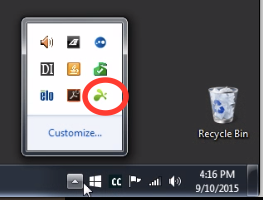
If you have this icon, then you are done! No need to proceed and do the following. If not, please proceed to Step 2.
Step 2: Download and Installation
Please click on the appropiate site link below. Site kiosks AND laptops should use the site link:
You don't have an installer for Splashtop. Please contact I.T. to get this resolved before proceeding! After doing that, you will see a screen that says "Welcome to Splashtop Business" (see reference image below)
Please check the checkbox that says "I am sure I want to allow remote access to my computer"
Click on the download button and run the installer. Please note the code! Copy this for pasting later. This code is unique for each SITE.
Please note on Firefox and other browsers, you may have to save first and then click on the file to run it.
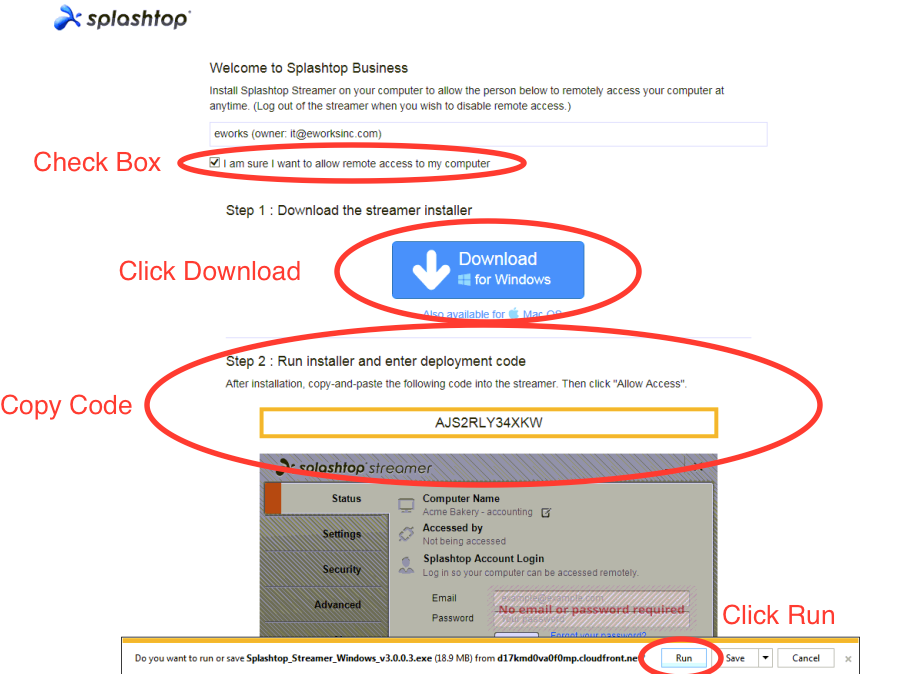
Splashtop may take a little while to install. Be patient as the installer runs.
Step 3: Set Up
When installation is complete, you will see a screen like below:
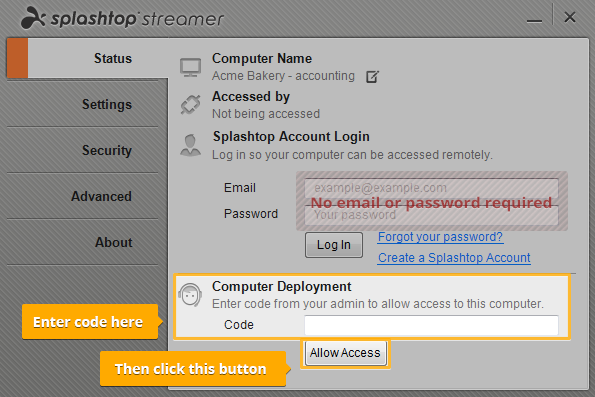
Please copy/paste or carefully type in your code from Step 2 in the designated box and click "Allow access". If you've already clicked out of the window with the code, please scroll up and copy/paste or carefully type the code that appears next to your site. No email or password is required.
When prompted that it@eworksinc.com will be able to access your computer, click on "Confirm"
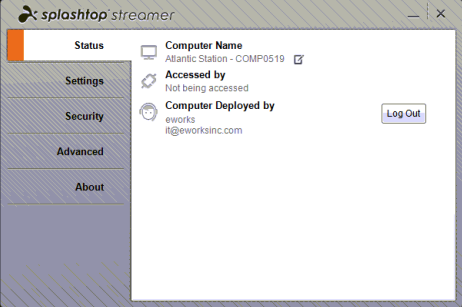
If you see a screen like below with the "Computer Deployed by eworks it@eworksinc.com", then you are done! Thank you! Please send an email to I.T. letting us know.
If at any point you get stuck in this tutorial, please call the I.T. line!